

Roblox
How to appear offline on Roblox?
Get the secrets to appearing offline on Roblox and hiding your status—discover the steps you never knew you needed to stay invisible.


Want to support your friends in Roblox but not sure how to do it safely? Many players believe that giving Robux directly is possible, but Roblox actually does not include a built-in feature to transfer Robux from one user to another. This limitation exists to protect players, especially younger ones, from scams, unauthorized transactions, and account theft. Still, that doesn’t mean you’re stuck — there are several legitimate, widely accepted, and safe methods to give Robux to your friends while staying fully compliant with Roblox’s rules.
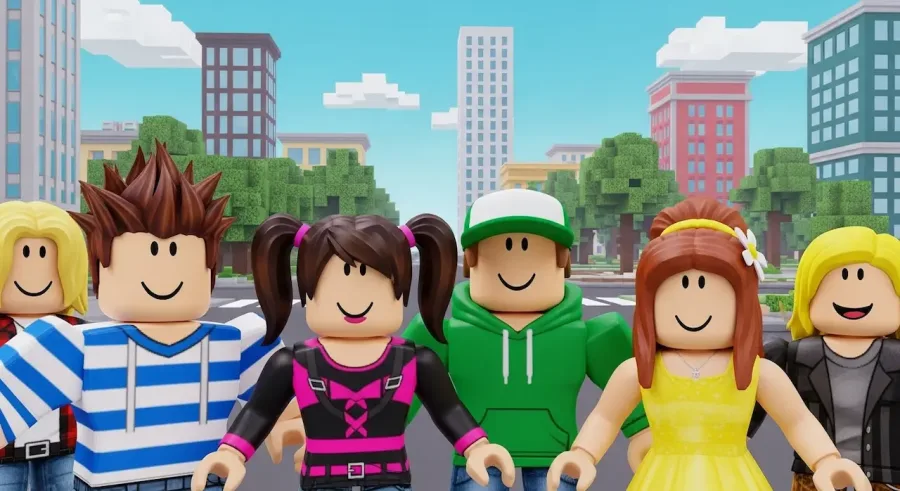
The most popular techniques are purchasing a Game Pass, buying a developer product, using group payouts, or supporting a donation item. These methods don’t break any rules because they work within Roblox’s official systems. This means you can help a friend, support a creator, or contribute to your group without putting your account at risk. Whether your friend is a beginner, an experienced game developer, or simply someone who needs Robux for an avatar upgrade, these methods will get the job done.
Roblox has clear restrictions on direct Robux transfers. The platform does not allow one user to simply “send” Robux the way you would send money in a messaging app. This is primarily to prevent fraud, unauthorized purchases, phishing attempts, and scams targeting young players. Because Robux has real monetary value, Roblox must enforce strong protections.
Even though there is no direct transfer button, several official methods exist that function as an indirect way of giving Robux. These include:
Understanding these options helps you support others without exposing yourself to risky or unapproved methods. Every legitimate Robux transfer always involves the Roblox marketplace — this ensures the transaction is monitored, taxed, and verified by the platform.
Creating a Game Pass is one of the easiest and most common ways for friends to exchange Robux safely. A Game Pass allows players to buy special perks inside a Roblox experience. But even if your friend’s game has no special perks, they can still create a simple Game Pass for the sole purpose of receiving support.
Here’s how your friend can set up a Game Pass:
Once the Game Pass is published, you can purchase it using your Robux. A small transaction fee (usually 30%) will be deducted by Roblox, and the remaining amount will go to your friend’s pending balance.
Some creators set up a special “donation Game Pass” for supporters. This is essentially the same as a standard Game Pass, but its sole purpose is to make financial support easy and organized.
Donation Game Passes are popular because:
If your friend is a developer, artist, or clothing creator, donation Game Passes are a simple way to motivate supporters and keep track of contributions.
After your friend creates a Game Pass, buying it is straightforward:
As soon as you confirm, the Robux will be deducted from your account. The transaction will then enter a pending period, also called “Robux Pending,” before reaching your friend’s balance.
When you buy a Game Pass or other marketplace item, the Robux doesn’t go straight to the seller. Roblox places it in a pending state, typically for 3 to 7 days. This waiting period is used to:
During this time, your friend will see the amount in their Pending Robux section, but not yet in their Available Robux. This delay is normal and happens to every creator on the platform.
Once the pending period ends, the Robux will move to your friend’s Available balance. They can confirm the transfer by:
If everything appears correctly, the transfer was successful. If the amount is missing or incorrect, your friend can open a support ticket with Roblox Support.
Because Robux is valuable, it’s important to stay safe. Here are essential tips:
Following these precautions protects both your account and your friend’s.
While Roblox does not allow direct Robux transfers, learning how to give Robux to friends is simple when you use official, safe methods like Game Passes, donation passes, or group payouts. These options allow you to support your friends, encourage creativity, and strengthen your presence in the Roblox community — all while keeping your account secure. Be patient with the pending period, follow the official guidelines, and enjoy the rewarding feeling of helping your friends grow on Roblox!


Get the secrets to appearing offline on Roblox and hiding your status—discover the steps you never knew you needed to stay invisible.

The history of Roblox goes back further than you might think, but just how old is this game-changing platform? Find out what sets it apart.
Thinking about erasing your Roblox presence forever? There’s a crucial step most users miss before their account is truly gone for good.

Navigating the secrets of joining a private group in Roblox isn't as easy as it seems—discover the steps you can't afford to miss.

Thinking about your child's safety on Roblox? Discover the crucial reasons parental controls matter before your next family game session.

Master the art of playing Roblox on your Nintendo Switch with these clever tricks—discover what works and what’s still just out of reach.