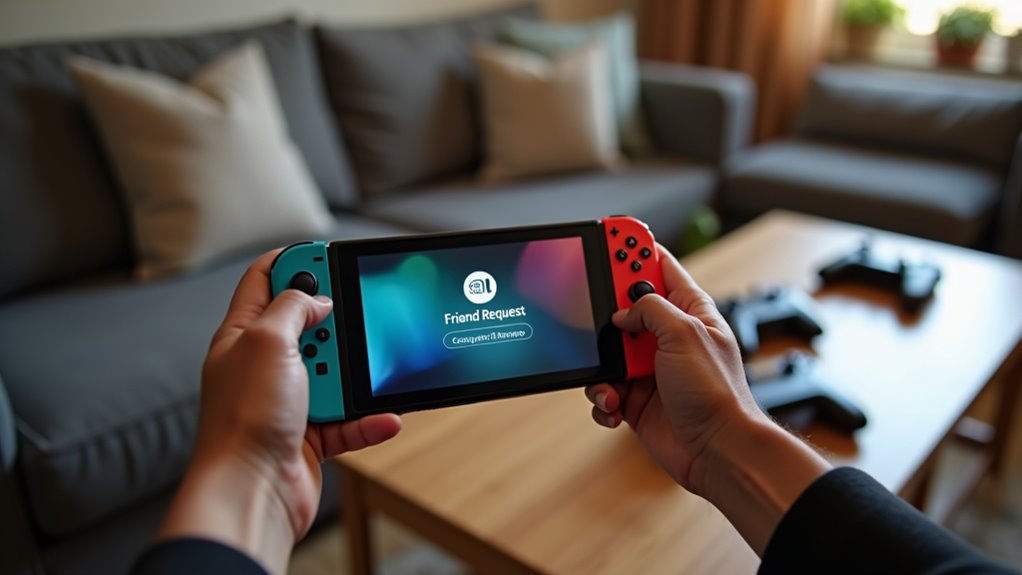
Adding friends on Nintendo Switch is one of the best ways to unlock the full potential of the console. Whether you’re teaming up in co-op missions, racing in Mario Kart, trading in Pokémon, or battling online in Super Smash Bros., having friends on your list makes every session more fun. But unlike many platforms that rely on simple usernames, the Switch uses a unique system to keep players safe and private—and that can make the process feel a bit confusing at first.
Once you understand how friend codes work, where to find the right menus, and how to adjust your settings, adding friends becomes quick and easy. Below is a complete guide to help you use friend codes, add local players, link social accounts, manage requests, and troubleshoot common issues so you can expand your Nintendo Switch friends list without any hassle.
Understanding Nintendo Switch Friend Codes
Nintendo Switch Friend Codes are the foundation of how players connect on the platform. Instead of usernames, Nintendo assigns every user a unique 12-digit code (formatted like SW-1234-5678-9012). This system is designed to protect privacy and reduce unwanted friend requests by ensuring only people with your code can find you.
Understanding Nintendo Switch Friend Codes is key, because nearly every method that involves adding online friends uses this system. It also gives players full control over who appears in their friend lists, who can request to connect, and who can view your activity. Unlike open friend systems on other platforms, the friend code model reduces spam, keeps children safer, and requires both parties to take deliberate steps before becoming friends.
Once you know where to find your code—under your user icon on the Home Menu—you’ll be ready to share it with trusted friends or enter someone else’s code to send a request.
Adding friends using friend codes
Friend Codes are the most common and straightforward way to add friends on Nintendo Switch. With a Friend Code, you can connect with people across the world, send friend requests instantly, and start playing multiplayer games together without limitations.
Here’s how to add friends using friend codes:
- On the Nintendo Switch Home Menu, select your user icon in the top left.
- Choose Add Friend from the sidebar.
- Select Search with Friend Code.
- Carefully enter the 12-digit code.
- Confirm by sending the friend request.
Your friends can add you the same way by entering your Friend Code. If you prefer to control who can send you requests, the Switch also includes privacy settings that let you limit visibility or block unwanted requests.
Using friend codes ensures that only people you trust join your friends list. This system is especially helpful for parents monitoring a child’s profile or for players who want a more controlled social environment. Once you’ve exchanged friend codes, you’re ready to join lobbies, share game activity, and enjoy online multiplayer together.
Connecting with nearby players via local wireless
If you want to add friends without using the internet, local wireless is your solution. Local wireless allows two or more Nintendo Switch consoles in the same area to connect directly, making it ideal when you’re playing in person with friends, hosting gaming nights, or connecting consoles on the go.
Many games automatically create a local lobby when you select the Local Wireless option, allowing you to team up or face off with others nearby—even without adding them online.
This feature offers several advantages:
- No Wi-Fi needed – perfect for road trips, outdoor hangouts, or places with weak internet.
- Fast setup – games connect instantly once players choose the same mode.
- Low lag – because the consoles communicate directly.
While local wireless doesn’t automatically add people to your online friends list, it makes it much easier to share friend codes afterward. Once the session ends, players can exchange codes or use the recommended friends feature on the console to officially add one another.
Linking your Nintendo account to social media
Linking your Nintendo Account to your social media accounts—such as Twitter (X) or Facebook—can make adding friends even easier. Once linked, the system can suggest friends who also have Nintendo Accounts associated with their social profiles.
Here are the benefits of linking your social accounts:
- Find friends automatically – no need to exchange friend codes manually.
- Share game screenshots or clips – post highlights directly to your feed.
- Sync contacts and friend lists – see recommended players you already know.
Before linking, review your privacy settings. You can choose who sees your posts, what data gets shared, and how visible your gaming activity is. Controlling these settings gives you the perfect balance between convenience and privacy while enjoying a more social gaming experience.
Accepting and managing friend requests
Once you start adding friends, managing your friend requests is simple and important for staying organized. You’ll receive notifications on the Home Menu whenever someone sends you a request.
To manage your friend requests:
- Select your user icon.
- Choose Add Friend.
- Open the Received Friend Requests tab.
- Accept, decline, or block as needed.
You can also see Suggested Friends—players you recently interacted with in online games or people connected to your social media if your Nintendo Account is linked.
It’s helpful to occasionally review your friends list, especially if you play online frequently. Removing inactive friends keeps your list cleaner and ensures your multiplayer recommendations and recent players list stay relevant. Organizing your contacts this way creates smoother matchmaking and a better online experience overall.
Troubleshooting common friend addition issues
If you’re struggling to add friends on Nintendo Switch, the most common issues involve simple mistakes or temporary connectivity problems. Fortunately, nearly all of them are easy to fix.
1. Incorrect friend code
Double-check the 12 digits. Even one wrong number will prevent the request from going through.
2. Privacy settings blocking requests
Some users have friend requests restricted by parental controls or privacy settings. Make sure both players allow friend requests under:
System Settings → Users → Your Profile → Friend Settings
3. Network connection issues
A weak internet signal can prevent friend requests from being sent or received. Restarting the router or switching to a stronger connection usually solves this.
4. System updates
Both consoles should be updated. Outdated firmware may limit online features.
5. Parental controls
If the account is a child profile, additional settings may restrict online play or friend features. Adjust these in the Nintendo Switch Parental Controls app if necessary.
If you fix these issues and still can’t add friends, restarting the console or relinking your Nintendo Account can refresh the system and restore proper functionality.
Conclusion
Adding friends on Nintendo Switch is essential for enjoying everything the console has to offer in online and local multiplayer gaming. Whether you use unique 12-digit friend codes, local wireless connections, or optional social media linking, the process becomes easy once you know where to find the right menus and settings.
Just head to your user icon, open the “Add Friend” section, and choose the method that works best for you. By managing your privacy settings, accepting requests regularly, and ensuring your system is updated, you’ll build a smooth and active friends list that enhances every game session.
With these steps, you’re ready to connect, compete, explore, trade, and enjoy countless multiplayer adventures on your Nintendo Switch.
Amanda Torati is a linguist and postgraduate researcher who specializes in the intersection of storytelling and interactive media. With a deep fascination for the gaming ecosystem, she focuses on deconstructing game narratives and technical trends to make them accessible to players of all levels. At ABWaves Game, Amanda combines her academic background with in-depth research to deliver reviews and guides that are both precise and engaging, ensuring readers stay informed in a fast-paced digital world.