

Roblox
How to appear offline on Roblox?
Get the secrets to appearing offline on Roblox and hiding your status—discover the steps you never knew you needed to stay invisible.


If you’ve ever wondered how to get voice chat on Roblox, you’re not alone. Voice chat is one of the most requested features on the platform, giving players the ability to communicate in real time, coordinate strategies, and socialize more naturally during gameplay. Whether you’re teaming up with friends in BedWars, exploring role-play worlds, or just hanging out, Roblox voice chat can completely transform your mobile gaming experience.
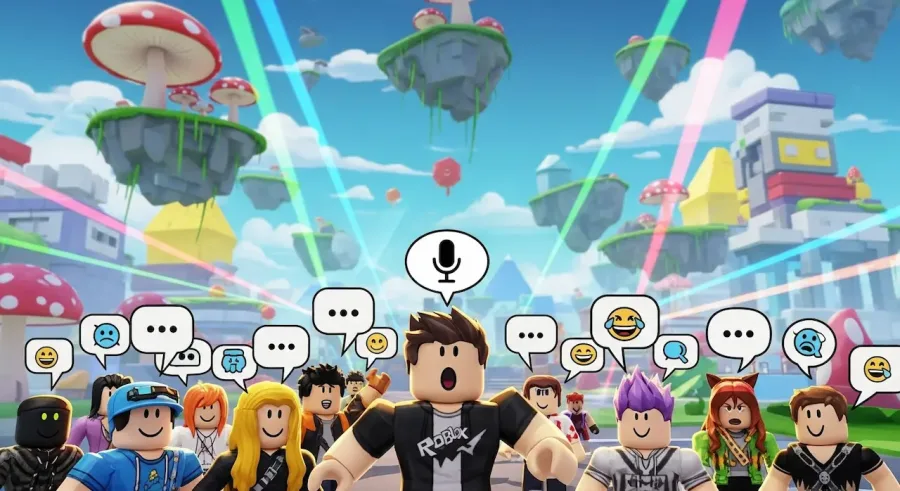
However, enabling voice chat requires meeting a few requirements and adjusting your account settings correctly. Not sure where to start? This comprehensive guide walks you through everything—from eligibility and age verification to enabling microphone permissions and testing voice chat in supported games. By the end, you’ll know exactly how to activate voice chat on Roblox from your mobile device safely and smoothly.
Before you try turning on Roblox voice chat, it’s important to verify that your device and account meet the necessary requirements.
Roblox may also require you to verify your age with an official ID, such as a passport, driver’s license, or government-issued identification card. This age verification helps keep younger users safe by limiting voice chat to players who meet the platform’s guidelines.
If your device or account doesn’t meet these eligibility requirements, voice chat will not appear in your Privacy settings.
Running an outdated version of the Roblox app is one of the most common reasons players can’t find the voice chat option. Updating solves this instantly.
Once your app is updated, restart it for the changes to take effect.
Age verification is the key to unlocking Roblox voice chat. Without completing this step, you won’t be able to turn it on.
Roblox uses secure age-matching technology to verify users. The process normally takes just a few minutes.
Once your age is verified, you will automatically unlock voice chat and additional communication features.
After verifying your age, it’s time to navigate to the correct menu to turn on voice chat.
This is where all communication and interaction features are located.
Inside the Privacy tab, scroll down until you see Voice Chat or Spatial Voice.
If your age isn’t verified yet, Roblox may prompt you to complete verification before allowing you to enable the feature.
Once activated, voice chat will be available in any Roblox game that supports it.
Voice chat won’t work unless Roblox has permission to use your microphone.
If you previously denied microphone access, you’ll need to enable it manually:
After granting access, restart the Roblox app.
Not every game supports voice chat, so you’ll need to join one that does.
Popular voice chat–enabled games include:
Once inside a compatible game:
If the mic icon becomes active and players can hear you, everything is working correctly.
If voice chat still isn’t working, try these solutions:
A simple reboot can fix permission or audio issues.
Missing updates can block voice chat from showing up.
A fresh install often solves corrupted file problems.
Voice chat requires a stable connection.
If verification failed, voice chat will stay disabled.
Double-check permissions and system sound settings.
If none of these solutions work, visit Roblox Support and submit a request.
Voice chat makes Roblox more fun, but it’s important to stay safe.
Roblox’s moderation team actively monitors voice chat environments to keep them safe for all verified users.
Now you know exactly how to get voice chat on Roblox using your mobile device. By verifying your age, updating your app, adjusting privacy settings, and enabling microphone access, you can unlock one of Roblox’s most interactive and exciting features.
Voice chat allows you to communicate instantly, build stronger teamwork, and enjoy more immersive gameplay. Whether you’re coordinating complex strategies, chatting casually with friends, or exploring role-play worlds, Roblox voice chat brings a new level of realism and fun to your mobile experience.


Get the secrets to appearing offline on Roblox and hiding your status—discover the steps you never knew you needed to stay invisible.

The history of Roblox goes back further than you might think, but just how old is this game-changing platform? Find out what sets it apart.

Thinking about erasing your Roblox presence forever? There’s a crucial step most users miss before their account is truly gone for good.

Navigating the secrets of joining a private group in Roblox isn't as easy as it seems—discover the steps you can't afford to miss.

Thinking about your child's safety on Roblox? Discover the crucial reasons parental controls matter before your next family game session.

Master the art of playing Roblox on your Nintendo Switch with these clever tricks—discover what works and what’s still just out of reach.