Moving your games, profiles, and progress to a new Nintendo Switch can feel like a big task, but it’s easier than you think. With the right setup, transferring data between consoles takes just a few steps. But here’s the catch: not everything moves automatically. Some saves live in the cloud, others require a manual transfer, and your digital games depend on the right account setup. Knowing these details before you start can save you time, and frustration, when switching systems.
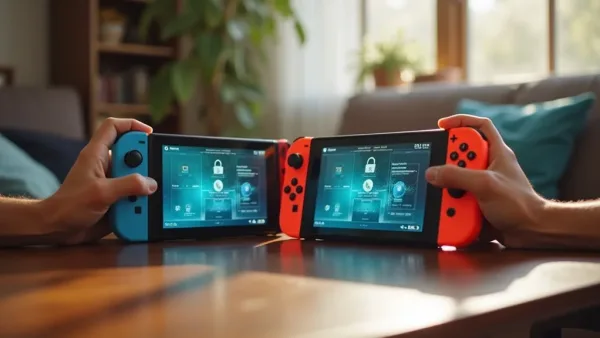
Learning how to transfer data between Nintendo Switch consoles helps you keep your game progress. (Image: ABWavesGame)
Preparing your Nintendo Switch consoles for data transfer
Before initiating the data transfer process, make sure both Nintendo Switch consoles are fully charged and connected to a stable internet connection.
For a smooth Nintendo Switch data transfer, follow this pre-transfer checklist: verify console compatibility, ensure both devices have the latest system update, and confirm your user account details.
Proper preparation helps your Nintendo Switch data transfer go faster and prevents errors, keeping your game saves and other data secure throughout the Nintendo Switch data transfer.
Understanding what data can be transferred
Understanding what data can be transferred on Nintendo Switch is key if you’re upgrading or switching consoles.
While the Nintendo Switch supports moving user-linked save data between systems, not everything goes with you. Some game saves tied to a specific user account can be transferred, but differences between accounts may limit access.
Downloaded games stay connected to the original Nintendo Account, and certain settings or software data might need separate setup or can’t be moved at all.
If you’re planning a Nintendo Switch data transfer, check your user profiles, confirm cloud save support, and make sure your purchases are linked to the correct account before you start.
How to link your Nintendo Account for data transfer
Linking your Nintendo Account for data transfer is essential if you want to move games, save data, and profiles between Nintendo Switch consoles.
To link your Nintendo Account, simply sign in on the new or target console using the same login details you use now.
Once your Nintendo Account is linked, your purchased games, cloud saves (with Nintendo Switch Online), and user data can sync, making the data transfer quick and hassle-free.
Step-by-step guide to transferring user and save data
Transferring user and save data on Nintendo Switch is simple when you follow the right steps. First, make sure your Nintendo Account is linked on both consoles.
Then, go to System Settings, choose Data Transfer, and follow the on-screen prompts to confirm the source and target devices.
For secure transfers, the consoles create a direct connection, protecting your user and save data throughout the process.
Depending on how many games and files you have, the transfer speed may vary, but this method ensures your user and save data moves safely and efficiently between systems.
Transferring data between primary and secondary consoles
When transferring data between primary and secondary Nintendo Switch consoles, it’s important to understand how access works across devices.
On a primary console, only one device can access downloadable software at a time, which can limit simultaneous play.
On a secondary console, you can download your games, but you’ll need an active internet connection to verify ownership before you can play.
Knowing these differences helps you manage game libraries, user profiles, and save data more smoothly when moving between systems.
If you regularly play Nintendo Switch games across multiple consoles, plan your primary and secondary Nintendo Switch setup in advance to avoid interruptions and keep your Nintendo Switch gaming experience seamless.
Using a wired or wireless connection for data transfer
Using a wired or wireless connection for data transfer on Nintendo Switch is simple and helps you move your game data quickly.
A wired connection for data transfer on Nintendo Switch is usually faster and more stable, but it may require extra cables or adapters.
A wireless connection for data transfer on Nintendo Switch is more convenient and flexible, letting you transfer without additional hardware, though it can be slower or affected by Wi-Fi interference.
Choose the option that fits your setup to keep your games and saves moving smoothly.
What to do if the transfer fails or gets interrupted
Encountering a failed or interrupted transfer between Nintendo Switch consoles can be frustrating, but there are clear steps you can take to fix it.
If a Nintendo Switch consoles transfer fails, start by ensuring both consoles have a stable internet connection and enough battery life or are connected to power. If its transfer gets interrupted, simply restart the transfer process, this alone often resolves the issue.
You can also try official interruption solutions: reset network settings, move closer to your router, use a wired LAN adapter if possible, and make sure both systems have the latest system update.
These steps typically help complete the Nintendo Switch consoles transfer successfully.
Managing downloadable content and game licenses after transfer
If you’re moving to a new Nintendo Switch, here’s how to manage downloadable content and game licenses after transfer.
First, make sure your Nintendo Account is linked on the new console. Your game licenses are tied to your account, so once you sign in and set the system as your primary console, you’ll regain access to your owned games and any updates.
Next, re-download your DLC from the Nintendo eShop. Go to your profile, open Redownload or Purchased, and select the games and downloadable content you want on the new device. This ensures your DLC and expansions are ready to play.
For a smooth experience, double-check that your Nintendo Account is active on the new system, confirm the new Switch is set as the primary console, and redownload any downloadable content you’ve purchased.
Following these steps will keep your game licenses and content synced after transfer.
Tips for transferring data without losing game progress
Ensuring game progress remains intact during a console transfer requires careful steps and clear planning.
To protect your game progress, start by creating a full backup and verify that all save data is included and consistent before you begin the transfer.
Avoid interruptions, keep both consoles charged and connected, to prevent corrupt files and lost game progress.
Finally, follow the official Nintendo transfer guidelines to minimize risks and maintain seamless gameplay continuity on your new Nintendo Switch.
Alternatives to full data transfer: using Cloud saves and backups
Cloud saves and backups offer an easy way to keep your game progress safe without moving everything at once.
With cloud saves, you can sync data across devices seamlessly, making it simple to pick up your games wherever you sign in. Smart backup management also helps maintain data integrity, reduce risks, and avoid the hassle of a full data transfer.
Conclusion
Learning how to transfer data between Nintendo Switch consoles helps you keep your game progress, profiles, and settings when upgrading or switching systems. Start by preparing both consoles, ensuring they’re updated and connected to the internet, and that your Nintendo Accounts are linked. Then follow the on-screen prompts to move user profiles and save data. Knowing how to transfer data between Nintendo Switch consoles also means checking which games support save transfers and how downloadable content behaves after the move.